Budget checks before submission
Staff see their budget, used amount and available balance. Claims above the available amount are blocked on web and mobile.
Give each employee type an annual budget for each claim type. Split it into periods, choose whether unused balance carries forward, and show staff their available amount before they submit.
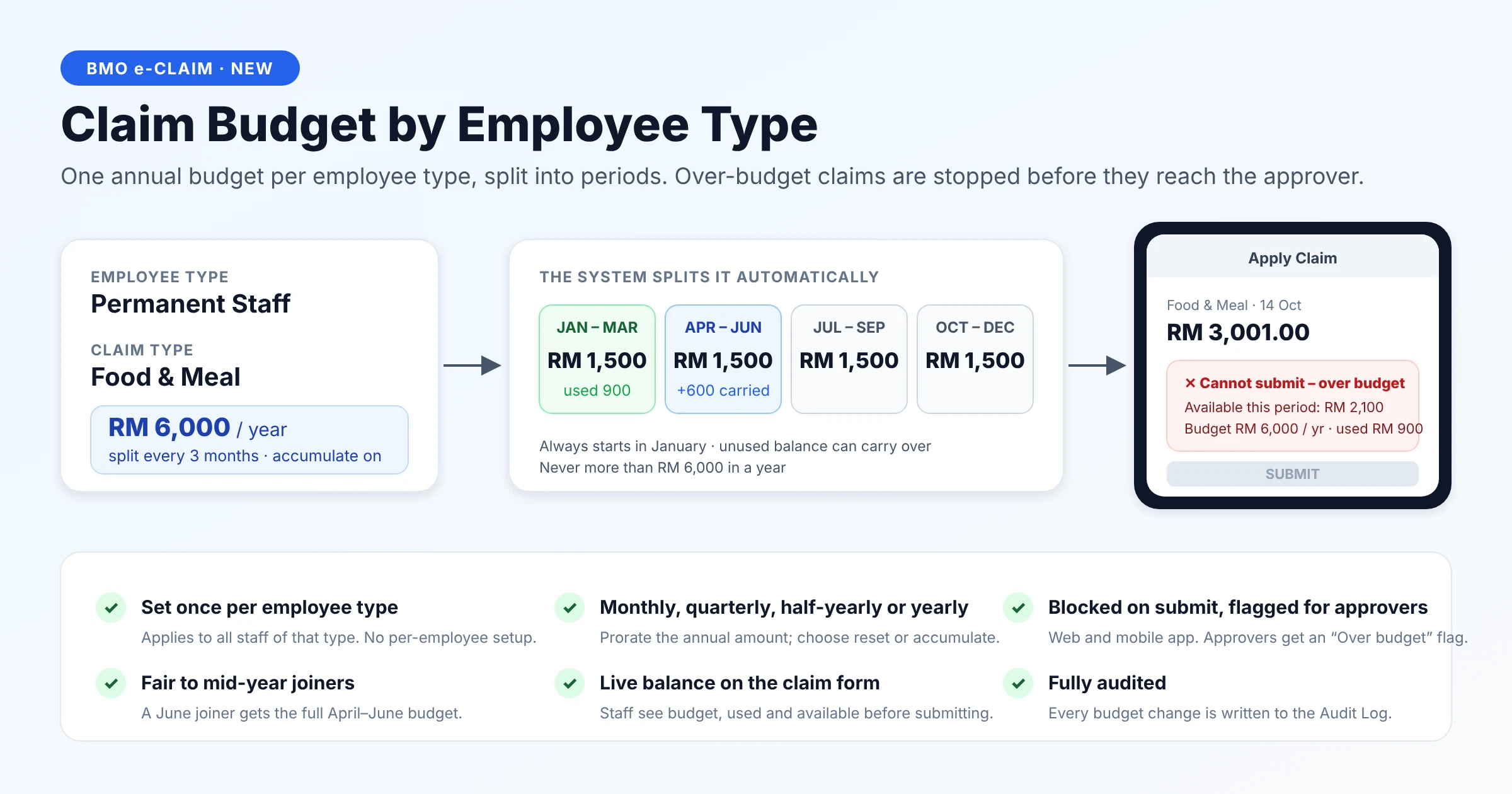
Set annual claim budgets by employee type, split them into periods, and block over-budget submissions on web and mobile.
Staff see their budget, used amount and available balance. Claims above the available amount are blocked on web and mobile.
Apply a rule to everyone of that employee type. When an employee changes type, their budget follows automatically.
Carry unused amounts into the next period or reset each period. The annual cap applies, with a fresh start on 1 January.
Build your claim policy around annual entitlements, period budgets and a balance staff can check before submitting.
Discuss this capabilitySet an annual budget for each employee type and claim type; it applies to every employee of that type.
Split the annual amount into periods of 1, 2, 3, 4, 6 or 12 months, always starting in January.
Example: RM6,000 per year becomes RM1,500 per quarter. With RM900 used in January–March, Accumulate adds the unused RM600 to the April–June allowance, making RM2,100 available.
Switch Accumulate off to reset each period. With either setting, the annual cap applies and everything resets on 1 January.
Give a mid-year joiner the full budget of the joining period: a June joiner on this quarterly plan receives the April–June RM1,500.
Show budget, used and available amounts on the claim form. Block submissions exceeding the available budget on the web and mobile app.
Flag an over-budget claim for approvers if a later edit causes it to exceed the budget.
Log every budget-rule change. When an employee moves to a new employee type, their budget follows that type.
Enable per company under Company Info → HRM → Claim. Mix budget rules with classic per-visit and per-year limits; companies that leave the feature off keep their existing behaviour.
Enable the company setting, configure each employee type, and let the claim form check the available balance.
Set Claim Budget by Employee Type to Yes under Company Info → HRM → Claim.
Under Employee → Employee Type → Claim Setting, tick Use Budget, enter Budget/Year, and choose Period and Accumulate.
The claim form shows budget, used and available amounts.
Over-budget claims cannot be submitted; every employee of the type is covered from the next claim.
Supplied sample diagrams and setup screens explain the feature. Select an image to enlarge it; all values shown are illustrative.
Yes. Enable Accumulate to carry unused balance into the next period within the same year. Leave it off to reset each period. The annual cap still applies, and everything resets on 1 January.
A June joiner on a quarterly plan receives the full April–June period budget. With an annual RM6,000 budget split quarterly, that is RM1,500 for the joining period.
No. Configure the employee type once. The rule applies to every employee of that type, and follows a change to a new employee type.
Yes. Classic per-visit and per-year limits can coexist with budget rules. The new feature is enabled per company; leaving it off preserves existing behaviour.